technicalsupport@gulfcoast.edu
850.913.3303
Participate in Harmonize Activities
Updated: November 20, 2026
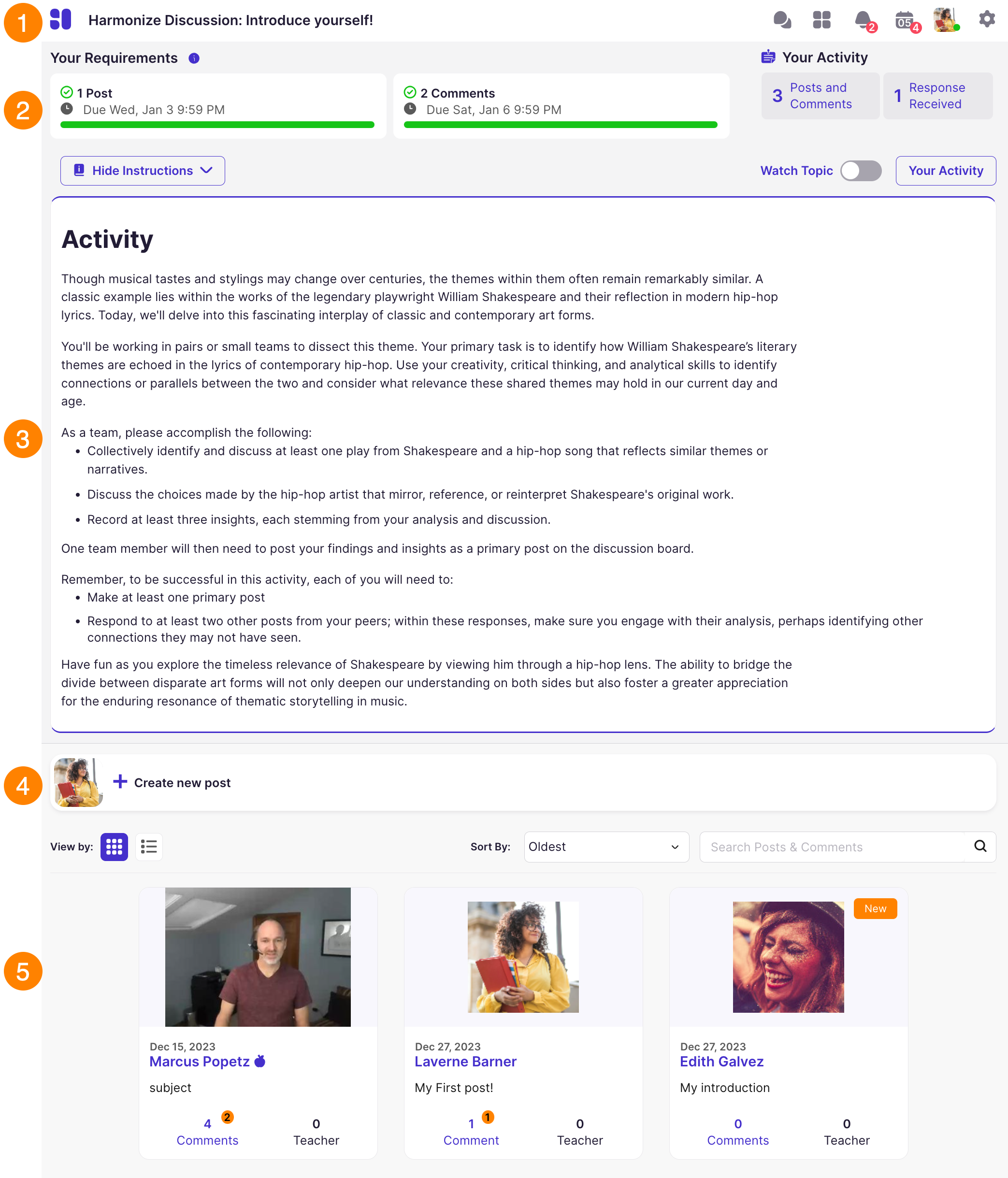
Harmonize is a discussion and collaboration tool used in some Canvas courses. If your instructor uses Harmonize for an activity, you will post, reply, annotate, or vote inside that activity in Canvas. You do not need a separate account or download.
New to Harmonize? Start with the Getting Started with Harmonize – Student Guide.
Harmonize works in the latest version of Chrome, Edge, or Firefox on Windows and Mac computers and Chromebooks. It also works in Safari (26 or newer) on Mac and iOS devices, Chrome on Android devices, and the Canvas Student app. For details, review the supported browsers on the Harmonize Help Center.
What can I do in Harmonize?
Your instructor chooses the activity type. Read the instructions at the top of each activity to know what is expected.
- Discussion: Post a response to a prompt and reply to classmates. Create and publish a post
- Peer Review: Submit a draft, review classmates' work, then revise. Peer Review student guide
- Social Reading (PDF Annotation): Highlight and comment on a reading and reply to classmates' notes. Annotate PDFs in Social Reading
- Poll: Answer a question your instructor posts.
- Q&A Board and Chat: Ask questions and message your instructor or classmates. These are usually ungraded.
If your instructor adds a rubric or the AI Student Coach, you can view them before you post. View rubrics and use the AI Student Coach
- Open the Harmonize activity in Canvas and read the instructions.
- Select the Create new post The Create Post window opens.
- Enter a Subject for your post.
- Tag classmates if you want them notified (optional).
- Type your response in the text area. A word count is included.
- Add media or files by dragging them in or browsing your device.
- Turn on Flag as Question for the Teacher if you have a question about the activity. For private questions, message your instructor through the Canvas Inbox instead.
- Use the icons at the bottom to add additional content including a link, video, audio, screen recording, poll, or annotation.
- Select Preview to check your post, then select Publish.
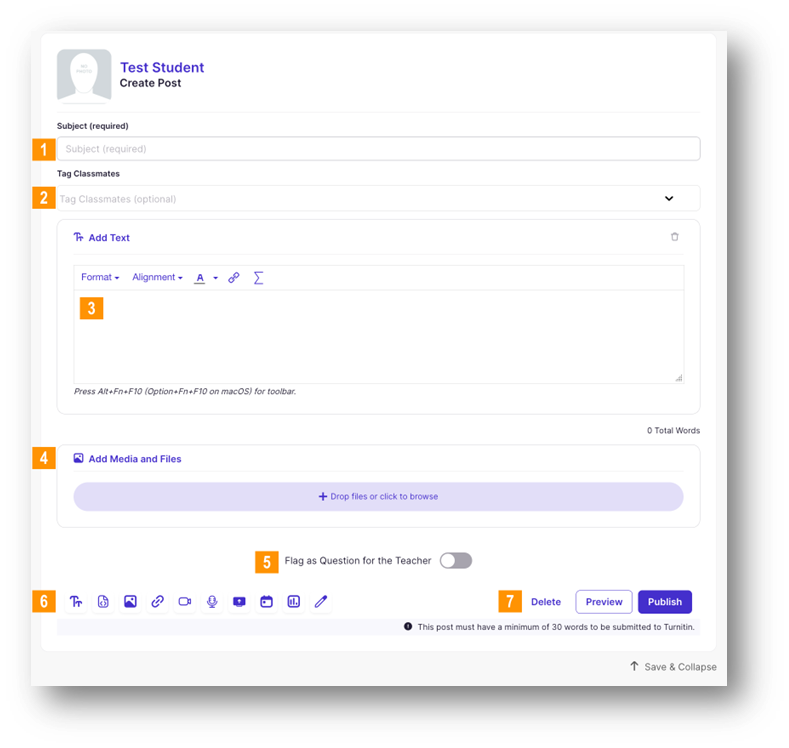
Important:Your post needs a subject and either text or an attached file to publish. Unpublished drafts save automatically. Select Continue Editing to finish a draft later. |
For more ways to respond, see these Harmonize guides:
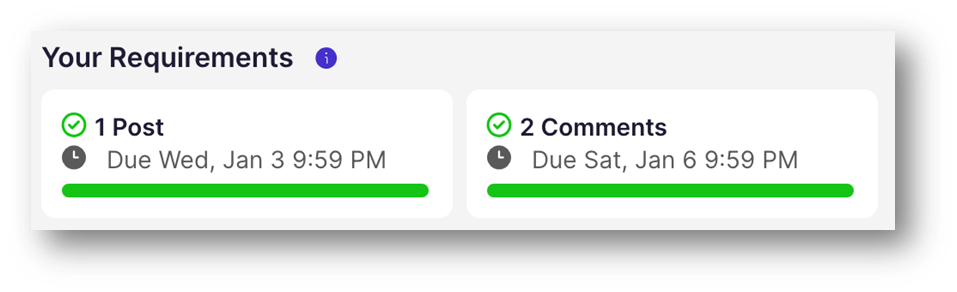
A Harmonize activity can have more than one due date, called milestones. For example, your post may be due Wednesday and your replies due Sunday.
- Check your milestones and progress at the top of the activity. What are milestones?
- See upcoming due dates in your Canvas To Do list. Harmonize To Dos in Canvas
- Review your own posts and replies with Your Activity. View your discussion activity
Grades appear in Canvas after your activity is graded.
Important:Canvas may show only the final milestone as the due date. Check the Harmonize activity for every deadline. |
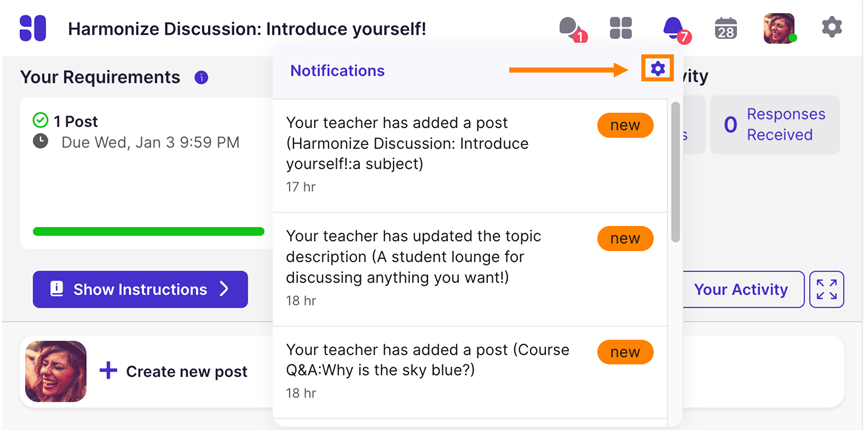
Harmonize sends its own notifications, separate from Canvas. You will see them under the bell icon in Harmonize and by email. Harmonize also emails you one day before a milestone is due and after a missed deadline.
- In Harmonize, select the bell icon, then the gear icon.
- Check the email address listed. It comes from Canvas by default.
- To use a different address, choose Email Specific Below, enter it, and select Save.
- Set how often you want emails: Immediately, Daily, Weekly, or None.
Important:Emails come from noreply@harmonizelearning.com with the subject line Recent Harmonize Activity. Add this address to your safe senders list so messages do not go to spam. Review the Notification Settings guide |
If an issue keeps you from completing an activity, notify your instructor as soon as possible.
For self-service troubleshooting, visit the Harmonize Student Help Guides. If you are unable to resolve the issue, contact the ITS Helpdesk:
- Email: technicalsupport@gulfcoast.edu
- Phone: 850-913-3303
- Hours: Monday-Friday, 7:00 a.m.-12:00 a.m. CST
For errors inside Harmonize, you can also email Harmonize Support at support@harmonizelearning.com from your GCSC email. Include your course name, the activity title, your instructor's name, and a screenshot. Harmonize Support is available Monday-Friday, 9:00 a.m.-5:00 p.m. ET.
Why do I see a blank screen or a prompt about cookies?
Your browser may be blocking third-party cookies, which Harmonize needs to load inside Canvas. Allow cookies for Canvas in your browser settings or select the option to open Harmonize in a new window. Safari users may find Chrome, Edge, or Firefox work more smoothly. Review the 3rd-Party Cookie Settings guide.
Why do I get an error when I select Publish?
Your post needs a subject and either text or an attached file. Add what is missing and try again.
Why can't I see my classmates' posts?
Some activities hide other posts until you publish your own. Publish your post first.
Why won't my reading load in Social Reading?
Social Reading needs the newest version of your browser. Update your browser and device or try another supported browser.
Why isn't my camera or microphone recording?
Your browser needs permission to use them. Review the Recording Permissions guide.
Why did my video recording stop on its own?
Student video recordings stop at 5 minutes by default. Harmonize saves what you recorded so you can review it.
Why can't I annotate a classmate's video?
Harmonize can only annotate videos that were recorded in Harmonize or uploaded as a file. Videos shared as a link from YouTube, Panopto, or another site will play, but they cannot be annotated. When you share a video, record it or upload the file instead of pasting a link. Review the Respond within Video guide.
Why did my grade lower than I expected?
Some Harmonize activities give credit for meeting each milestone on time. If you completed the work but missed a milestone deadline, or posted fewer replies than a milestone required, your score may be lower. Select Your Activity to see which milestones you met, and contact your instructor if you have questions about your grade.
Can I use my phone or tablet?
Yes. Use Safari (26 or newer) on iOS devices, Chrome on Android devices, or the Canvas Student app.
Will Harmonize work with screen readers or other accessibility tools?
Yes. Harmonize is designed to work with screen readers and meets current web accessibility standards. It also captions videos automatically and adds audio descriptions to instructor videos. For additional support, contact the Student Accessibility Resource (SAR) Center at sar@gulfcoast.edu or 850-747-3243.